How to add a new subscription?
Desktop
To add a new subscription to your existing account, follow the steps below.
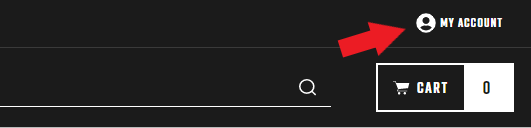
- At the top right of the screen, click "My Account".
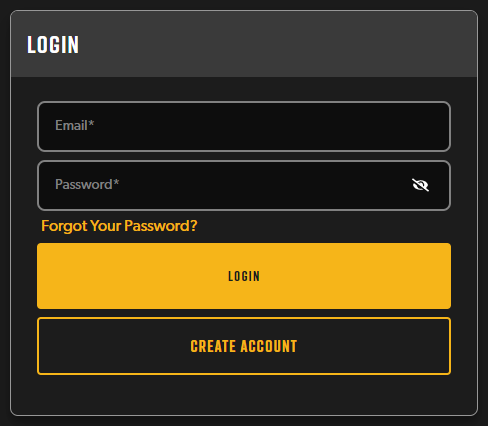
- Enter the email address and password associated with your subscription account and click Sign In. If you have any issues with this, please see Why can't I log in to my account on your website?
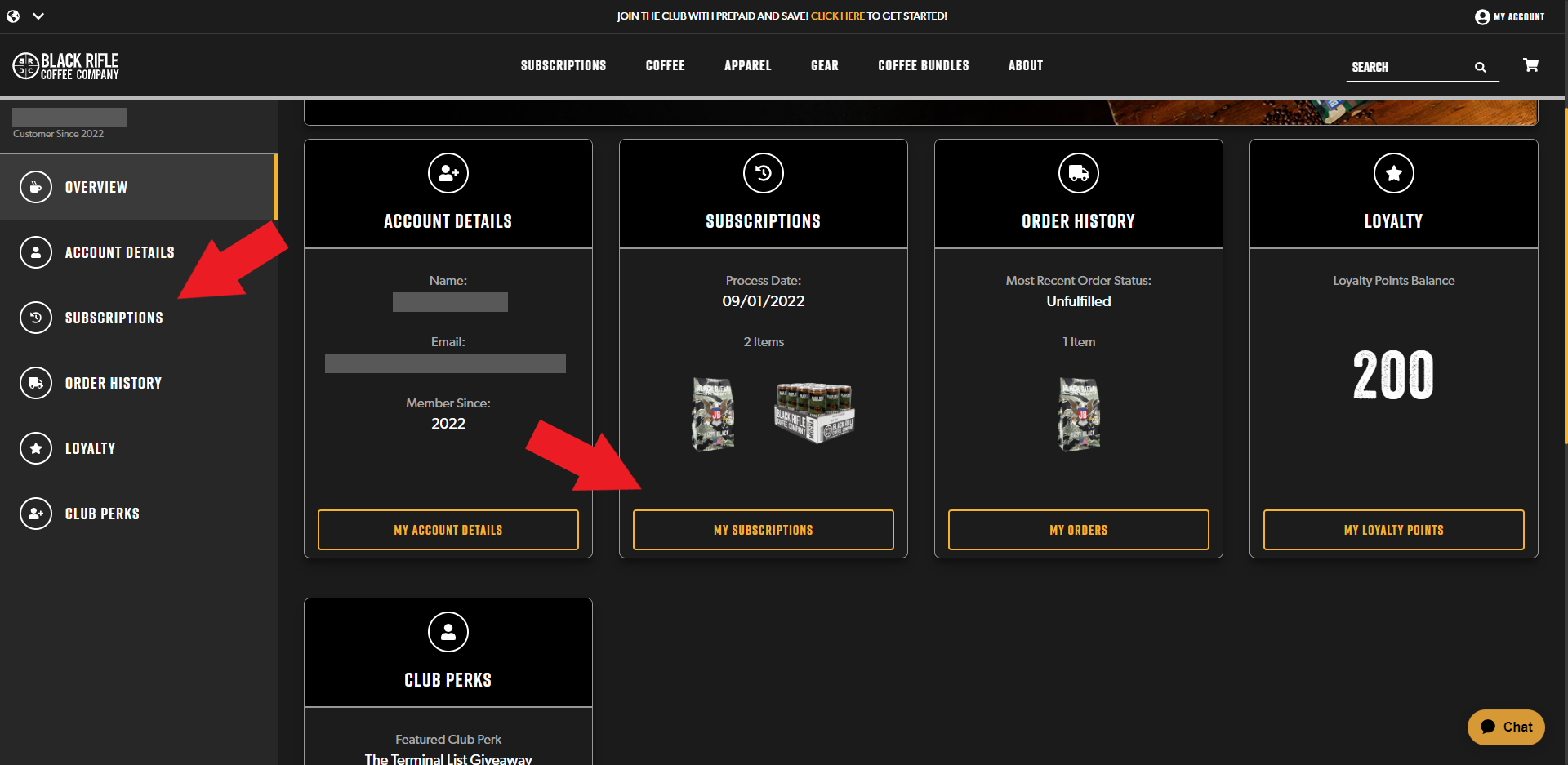
- On the left side of the page you will see a list of items that will take you to different areas of your account: Overview, Account Details, Order History, Subscriptions, Loyalty, and Club Perks. If you click on "Subscriptions", you will be taken to a page where you can manage all of your active and inactive subscriptions. You can also click on the "My Subscriptions" button in the Subscriptions tile located in the main portion of your screen.
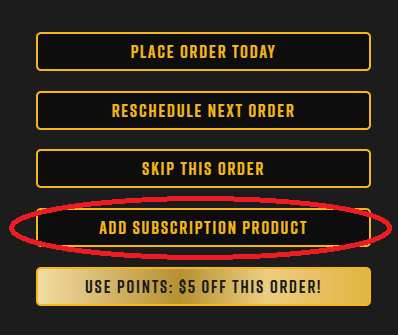
If you are browsing and accessing your account on your mobile phone, scroll down to Subscriptions and tap on the "My Subscriptions" button. - Here you will see your subscription details; if you have more than one active subscription, you will see the subscription that is scheduled to process next. Click on the "Add Subscription Product" button on the right-hand side
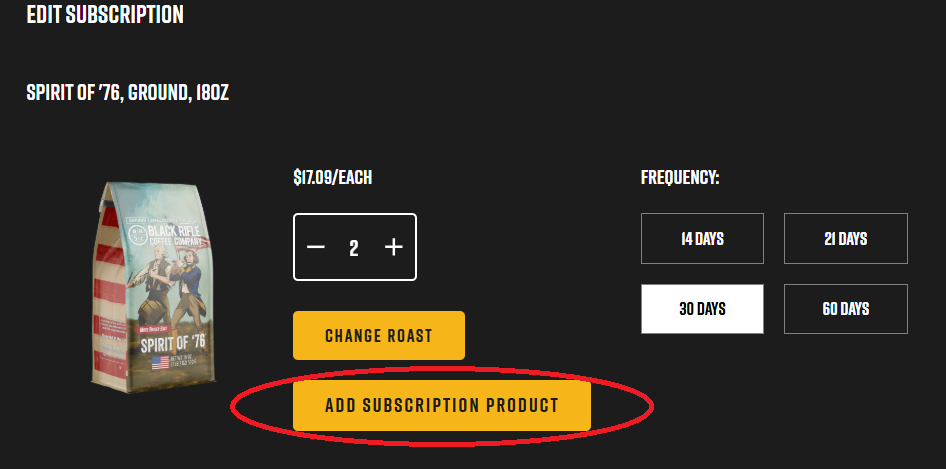
You can also scroll down the page and go through the Subscription Products section. - After you click Edit, you will see an Edit Subscription page. You can click "Add Subscription Product."
- A pop-up window will appear. Choose the roast(s) you want, then click Add
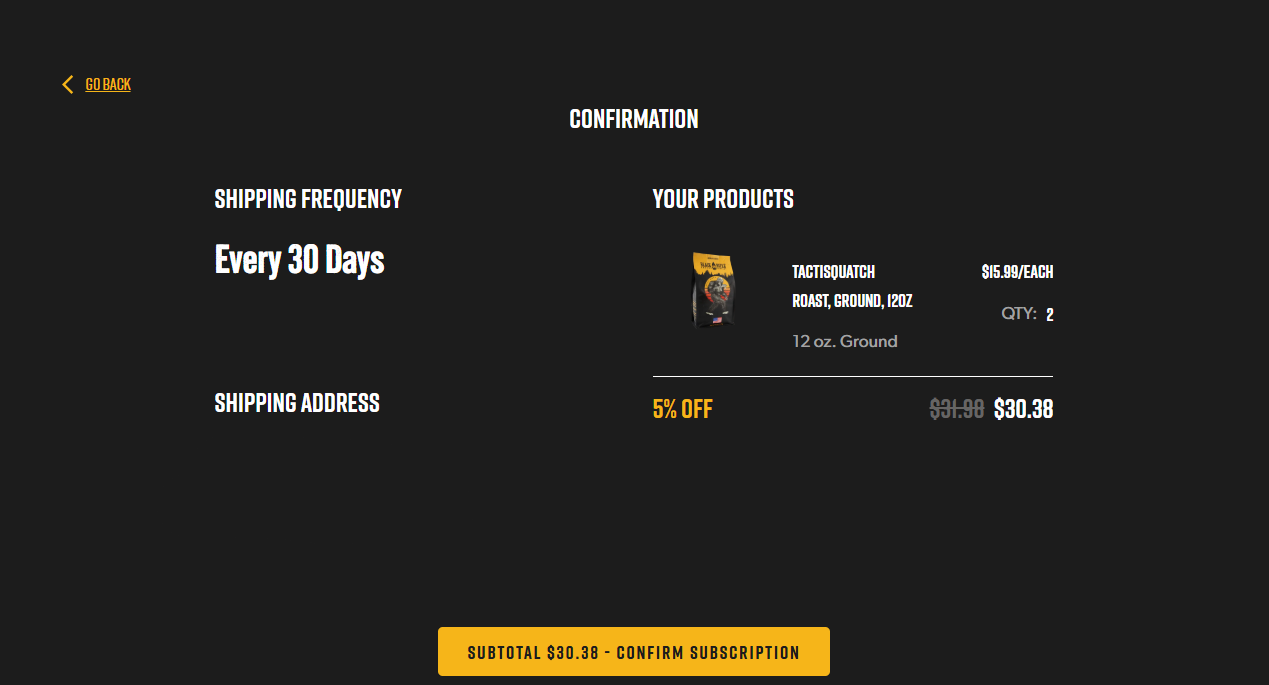
- You will be asked to verify your new subscription and click Confirm

Mobile App
-
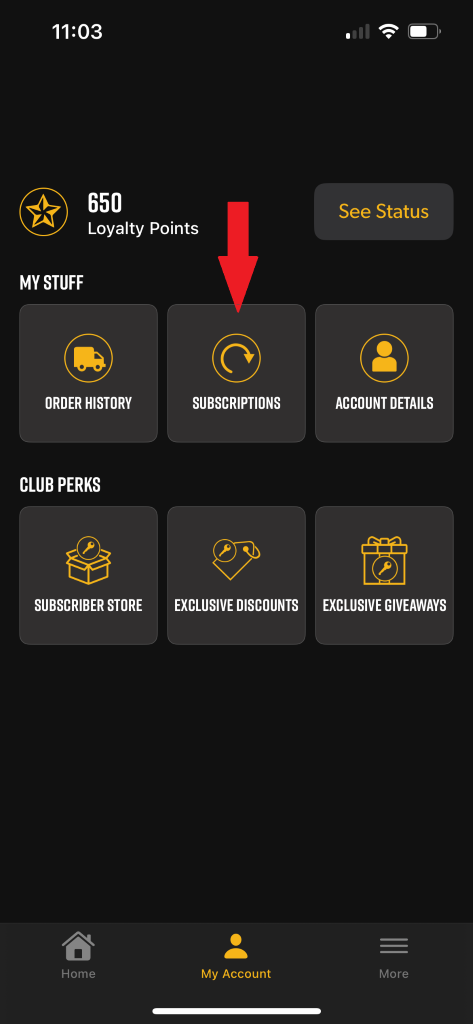
If you are using the Mobile App, click Subscriptions. Open the app and enter your email and password to sign in
-
Click my account at the bottom, this will pull up Account options. Choose Subscriptions
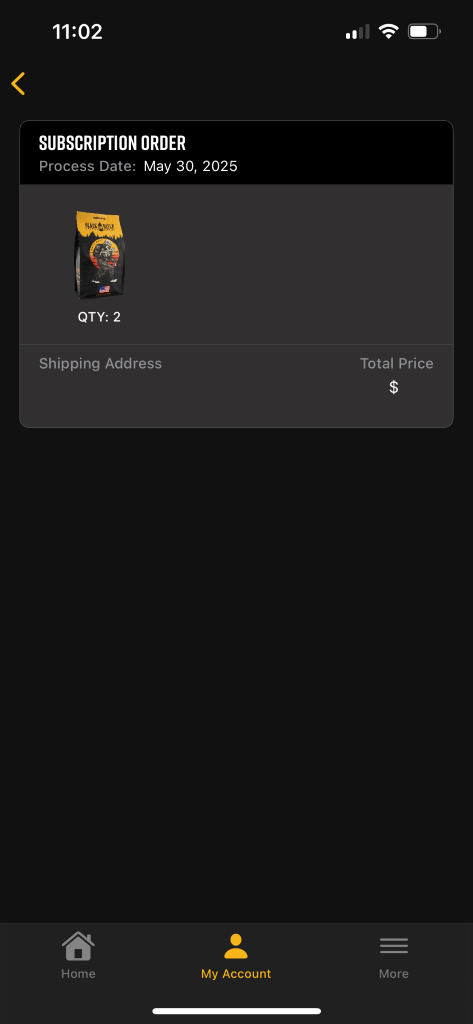
- This will open your subscription orders. To make changes, click the box with the subscription you would like to change.
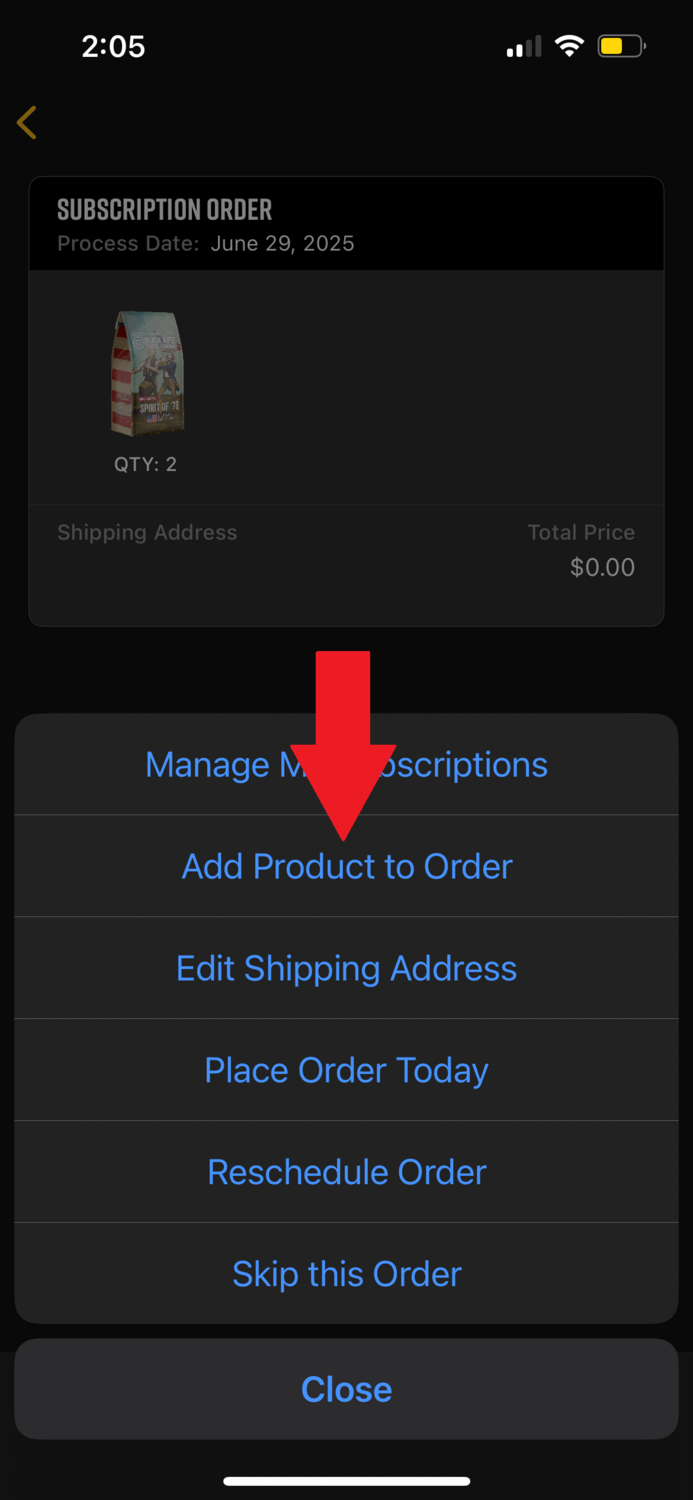
- Option will pop up – click Manage My subscription
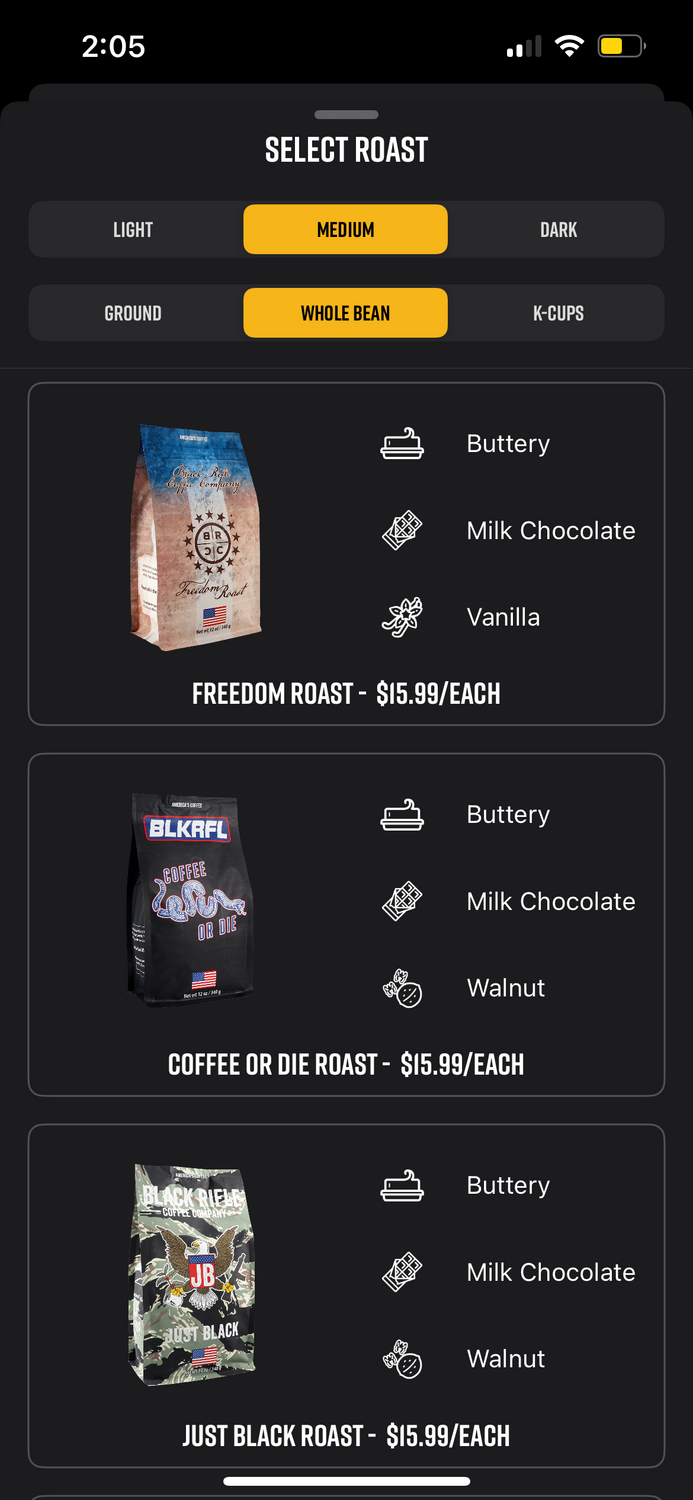
- A pop-up will appear to add new items to your subscription.
- After you choose an item, it will ask you to confirm your subscription.
You can add multiple items by clicking "Add Another Product" - Click Add Product to add the item to your existing subscription