How to Update Billing & Payment Methods
Billing Information
*The following information only applies to saved payment methods on your account. Billing information on single purchases can only be entered during the checkout process before the order has been submitted.
Payment Methods On Your Account
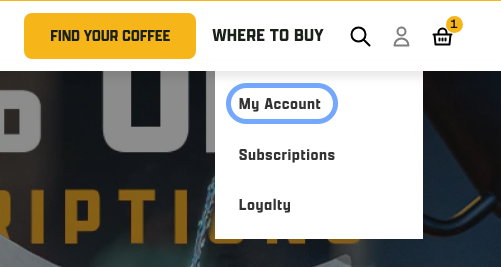
- At the top right of the screen, click the person icon and "My Account".
- Enter the email address associated with your account, you'll receive a secure one time use code to your email to login
- If you have any issues with this, please see Why can't I log in to my account on your website?
- Once logged in navigate to the Profile tab and scroll down to the Payments section
- From here you can edit existing payment methods by clicking the image of the card, or add a new payment method
Payment Method On Your Subscription
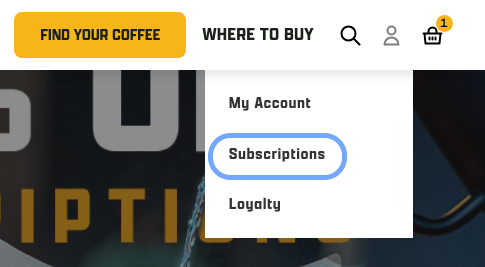
- At the top right of the screen, click the person icon and "Subscriptions".
- If not already logged in:
- Enter the email address associated with your account, you'll receive a secure one time use code to your email to login
- If you have any issues with this, please see Why can't I log in to my account on your website?
- Enter the email address associated with your account, you'll receive a secure one time use code to your email to login
- From here scroll down to Billing and click the drop down
- Select pencil icon and Send Email
- On the email there will be a button "Update Payment Information"
- You'll be taken to a checkout page to input your new card information
- This does not create a new order
If you have any issues updating your credit card on file, please get in touch with Customer Support for assistance and additional troubleshooting. For your privacy and security, please do not provide payment information over the phone, chat, or email. We will not accept any credit card information communicated to us. Please be prepared with a description of the error you received and screenshots, if possible, that do not include credit card information.
You may also find these articles helpful:
- How do I pause my subscription or skip a shipment?
- How do I cancel my subscription?
- How do I change how much coffee I'm receiving through my subscription?
If you found these instructions helpful, please let us know!
