How to Update Your Shipping Addresses
Updating Your Shipping Address Guide
Moving, traveling, or just sending coffee somewhere new? No problem. This guide covers how to quickly update your shipping address for both subscription orders and one-time purchases so everything lands in the right place.
Table of Contents
Subscription Shipping Address
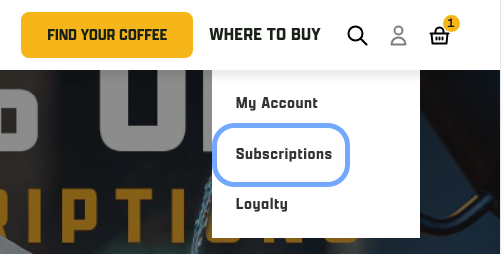
- At the top right of the screen, click the person icon and "Subscriptions".
- Enter the email address associated with your account, you'll receive a secure one time use code to your email to login
- If you have any issues with this, please see Why can't I log in to my account on your website?
- Scroll down to the Shipping section and click the drop down arrow
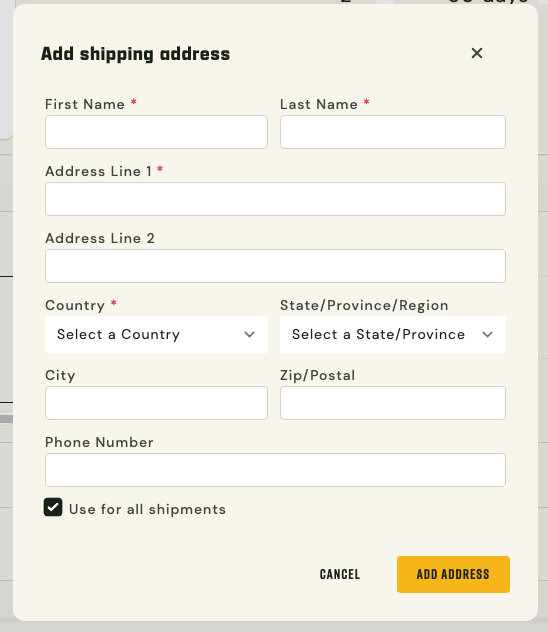
- From here you can edit or select a different address, or you can also add a new address
- If adding a new address, don't forget to hit "Use for all shipments" and hit Add Address!
Non Subscription Shipping Address
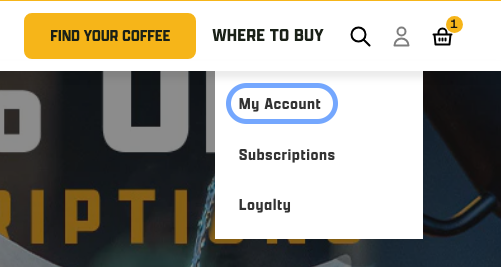
- At the top right of the screen, click the person icon and "My Account".
- Enter the email address associated with your account, you'll receive a secure one time use code to your email to login
- If you have any issues with this, please see Why can't I log in to my account on your website?
- Once logged in navigate to the Profile tab and scroll down to the Profiles section
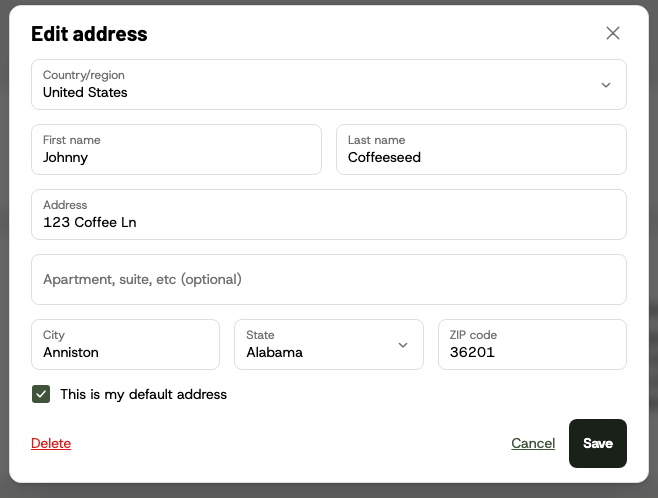
- From here you can delete or edit existing addresses by clicking the pencil icon or create a brand new address
- Don't forgot the mark the checkbox for default and hit save!
You may also find these articles helpful:
- How do I pause my subscription or skip a shipment?
- How do I cancel my subscription?
- How do I change how much coffee I'm receiving through my subscription?
If you need any assistance with changing the shipping address on your subscription, please contact us via email, chat (via the chat widget on the website), or give us a call (1-385-262-7184).
