How do I apply a discount code?
Discount Codes
*This article relates to purchases through checkout only.
What kind of device are you trying to complete your purchase on?
Desktop
This step-by-step instruction includes screenshots from a desktop computer. This will be different from both the mobile website as well as the mobile app.
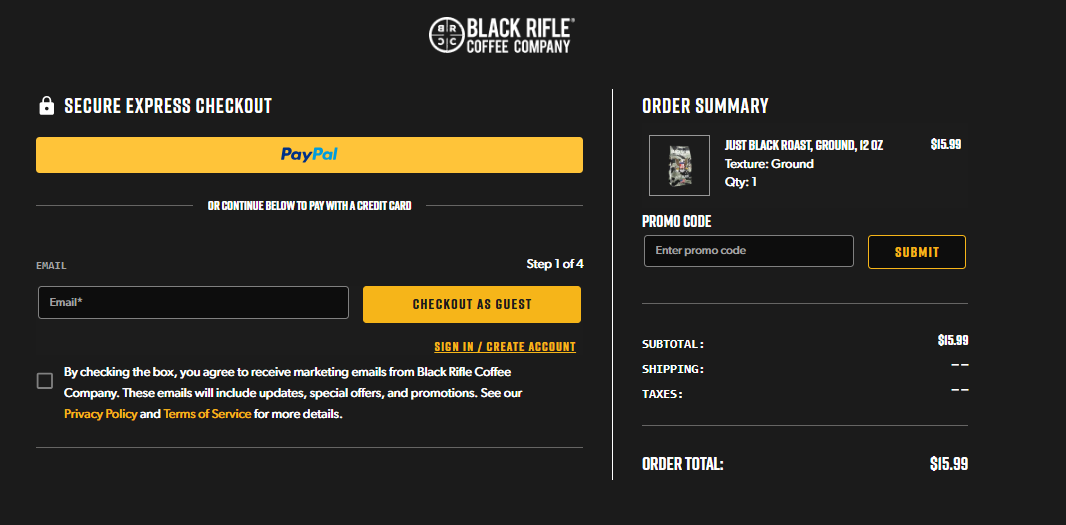
- Every time you add an item to your cart, the Shopping Cart will automatically pop put from the right side of the page with a preview of your order. After proceeding to checkout by pressing the gold "checkout" button, you will see a summary of your order on the right and the checkout section on the left.
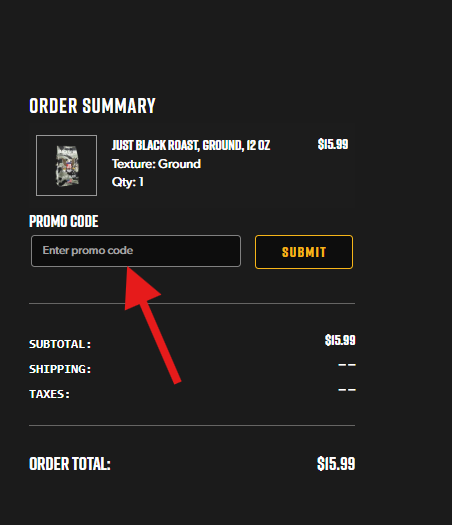
- On the right side of the screen, you should see a box for PROMO CODE
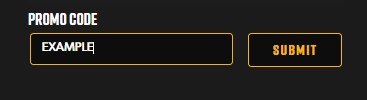
- Enter the code you would like to use and select "Submit".
If the code isn't working, there are a few common causes. Most commonly, the code that you are trying to use is meant to be used for specific items and is not applicable to the items that are in your cart. An example of this would be a discount code that is only applicable to an order containing a subscription item or items, but your cart does not contain any. Another example would be an order of only RTD cans, as these are not eligible to receive discounts by themselves. This link will show you a list of all items that are individually excluded from discounts: Item Exclusions
___________________________________________________________
Mobile
This step by step is from the mobile version of the website, not the app. For example, if you open your phone's internet browser and go to blackriflecoffee.com, the following images should give you instructions on where to find the discount code box.
- After you've added the final item to your cart, click the Cart button on the top right. At the bottom, you'll see a gold bar that says "Checkout". Click that to move forward with your order.
- Next, you will see your order summary and an express checkout option. Scroll down to manually enter your contact information.
- Under the Payment option - there is a box for Promo Code
- Enter the code you would like to use and select "Apply".
- If the code populates below the box and you see a new total price, the discount code has been applied. If the code isn't working, there is likely an issue with the code applying to the item you are trying to purchase. This link will show you a list of all items that are excluded from discounts: Item Exclusions
- Continue and select "Confirm" to complete your order.
Stacking Discounts
At this time discount codes CANNOT be stacked or combined with any other codes or offers as our system only recognizes one form of discount per transaction. This includes promotions in which the discount is automatically applied at checkout and not provided as a physical code.
Other articles you may find useful:
How do I apply a discount code to my recurring subscription order?
__________________________________________________________
If you continue to experience trouble when applying a discount code to your order, please feel free to reach out to us via email, chat, or phone and we will be happy to assist you!
